In large-scale enterprise environments, centralized software deployment automation provides tremendous operational efficiency for both employees and IT departments. However, delegating software installation self-service to unprivileged users introduces subtle security boundary assumptions that attackers can exploit to achieve local privilege escalation (
NT AUTHORITY\SYSTEM).
When standard enterprise users are permitted to initiate software installations on demand via Software Center, third-party installer packages are often executed within the SYSTEM security context. Because most commercial software installers were originally engineered assuming an interactive local administrator session rather than automated headless deployment, this architectural mismatch creates high-impact security vulnerabilities: DLL search-order hijacking, insecure temporary directory usage, and file-creation race conditions.
Executive Overview: The Deployment Problem
In enterprise environments with tens of thousands of managed endpoints:
- Users constantly require various third-party applications and regular updates.
- Granting local administrative privileges violates the principle of least privilege and introduces widespread corporate security risks.
- Manually dispatching IT support technicians for every installation or patch is operationally infeasible.
To bridge this gap, enterprise organizations rely on Microsoft Endpoint Configuration Manager (SCCM / MEM).
+-------------------------------------------------------------+
|                     ConfigMgr Server                        |
|  - Packages & Applications defined                          |
|  - AppEnforce execution policy configured                   |
+------------------------------+------------------------------+
                               |
                        SOAP / RPC Policy
                               |
                               v
+-------------------------------------------------------------+
|                    Client Workstation                       |
|  - User initiates install via Software Center (Unprivileged)|
|  - CcmExec orchestrates deployment                          |
|  - Installer executes as NT AUTHORITY\SYSTEM                |
+-------------------------------------------------------------+
Intended Installation Model vs. Reality
In a typical desktop environment, software installers modify protected system paths (C:\Program Files, registry hives like HKLM, and system driver configurations). Consequently, installers require elevated permissions.
When a local administrator runs an installer manually, the user and the execution context reside within the same trust boundary.
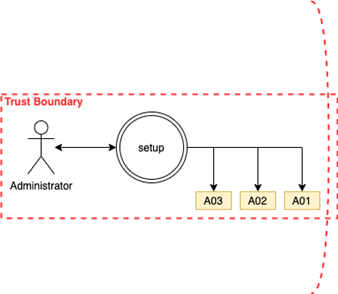 Figure 1: Standard interactive installation running under an administrative session.
The ConfigMgr Architecture
With SCCM, administrative teams define deployment metadata describing how each application is provisioned across endpoints. Packages can include .msi installers, standalone .exe executables, or custom PowerShell wrappers:
- Package source location and hash validation
- Command-line install and uninstall switches (e.g.,
/qn,/silent) - Detection rules and user experience settings
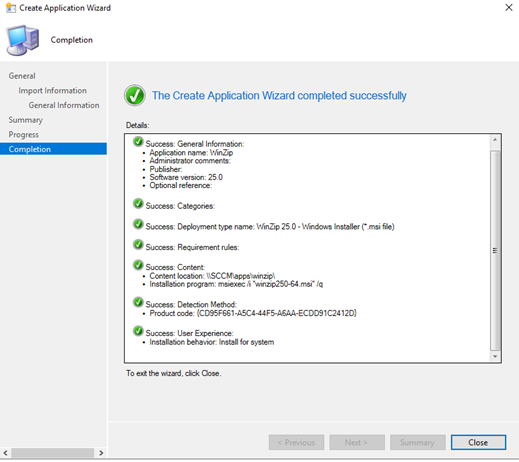 Figure 2: ConfigMgr Console application definition.
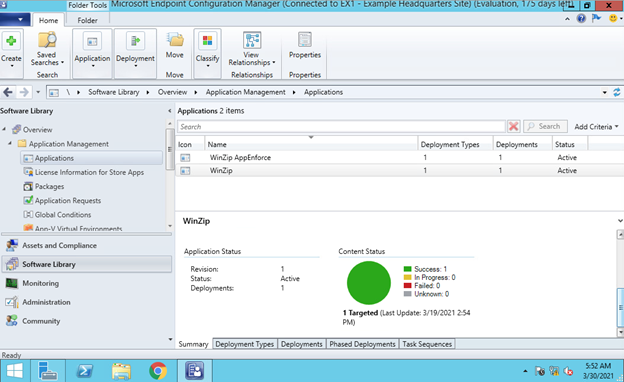 Figure 3: Deployed software packages available to endpoints.
The AppEnforce Boundary
A critical deployment parameter in ConfigMgr is Installation Behavior:
- User Context (
Install for user): The installer executes in the security context of the logged-on unprivileged user. - Machine Context (
Install for system): The installer executes underNT AUTHORITY\SYSTEM.
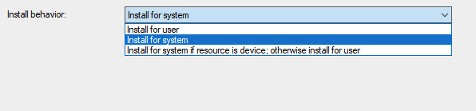 Figure 4: Enforcing the installation context (User vs. System).
Because standard commercial installers attempt to write to Program Files or HKLM, running them in User Context typically fails immediately with error code 0x800702E4 (The requested operation requires elevation):
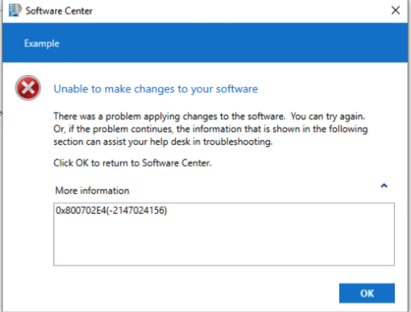 Figure 5: Failure when deploying administrative installers under User context.
As a result, SCCM administrators configure almost all applications to deploy under the System context (Install for system).
The Client Experience
Endpoints query the SCCM Management Point over SOAP/WMI, downloading catalog metadata and populating Software Center:
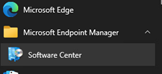 Figure 6: Endpoint Software Center available to low-privileged users.
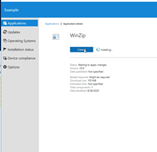 Figure 7: An unprivileged employee initiates an approved installation on demand.
When a user clicks Install:
- The installation binaries are staged locally into
C:\Windows\ccmcache\<id>\. - The
CcmExecservice communicates deployment parameters to the Windows Installer service (msiserver.exe) or spawns the target executable directly. - The installer runs elevated as
NT AUTHORITY\SYSTEMwithout prompting for UAC credentials.
The Root Vulnerability: The Exposed Temp Boundary
Most setup packages assume that when they run elevated, they are executing within an interactive administrator’s profile. They rely on the Windows installer property CommonAppDataFolder or user %TEMP% directories to extract payloads, load helper DLLs, and run temporary scripts.
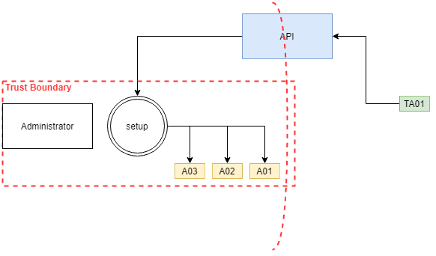 Figure 8: Traditional assumptions vs. SCCM background deployment.
When running as NT AUTHORITY\SYSTEM, there is no standard user profile directory. Instead, the process maps %TEMP% and %TMP% directly to:
C:\Windows\Temp
By default in Windows, unprivileged users have write and directory-creation permissions inside C:\Windows\Temp. When an installer running as SYSTEM extracts files to C:\Windows\Temp or searches that directory for dynamic dependencies, unprivileged users can manipulate those files to achieve arbitrary code execution as SYSTEM.
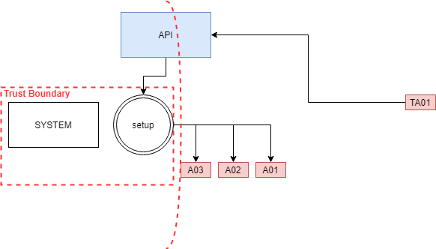 Figure 9: Process execution tree resolving under SYSTEM.
Privilege Escalation Case Studies
Case Study 1: Microsoft Office Installer & DLL Search-Order Hijacking
When Microsoft Office’s setup.exe runs under Machine Context via SCCM, it unpacks and launches auxiliary processes such as ose00000.exe out of C:\Windows\Temp\.
During execution, Process Monitor reveals that the process attempts to dynamically load libraries using standard Windows DLL search order resolution, probing C:\Windows\Temp\ before system directories:
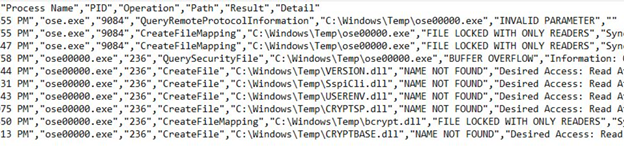 Figure 10: Process Monitor capturing missing DLL lookups in C:\Windows\Temp.
Because any low-privileged user can write to C:\Windows\Temp\, an attacker simply plants a malicious DLL (such as version.dll):
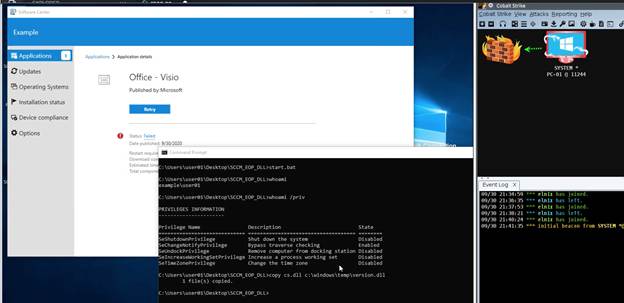 Figure 11: Pre-staging a malicious payload in C:\Windows\Temp.
When the unprivileged user triggers the Office installation from Software Center, setup.exe loads the malicious DLL as NT AUTHORITY\SYSTEM.
Case Study 2: WinZip Installer & File Creation Race Condition
During the unattended installation of WinZip, MsiExec.exe (running as SYSTEM) writes an auxiliary utility named CloseFAH.exe into C:\Windows\Temp\ and executes it shortly thereafter.
The window between when the write handle is closed and when the process is executed is approximately 200 milliseconds—more than enough time to win a local race condition via file system monitoring APIs (ReadDirectoryChangesW) or Opportunistic Locks (OpLocks):
- The exploit monitors
C:\Windows\Temp\for the creation ofCloseFAH.exe. - As soon as the handle is released, the exploit overwrites
CloseFAH.exewith a custom payload. - The Windows Installer executes the modified binary as
SYSTEM.
 Figure 12: Catching file-access exceptions while racing the SYSTEM process.
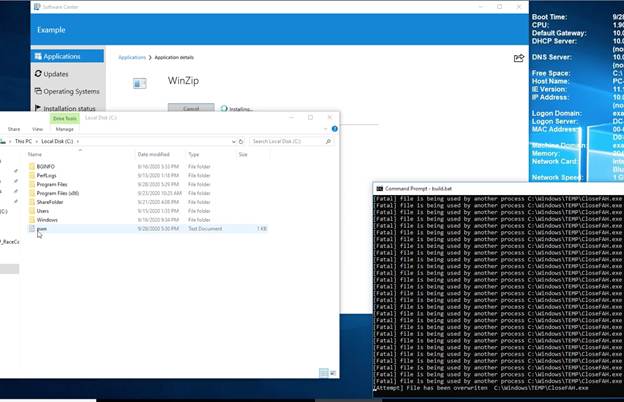 Figure 13: Proof-of-concept payload execution demonstrating full SYSTEM compromise.
Red Team Methodology: Discovery and On-Demand Triggering
Once an attacker secures an initial foothold on a workstation, this deployment architecture can be systematically exploited:
1. Identify ConfigMgr Presence
Check for the active CcmExec service:
Get-Process -Name CcmExec
Get-Service -Name CcmExec
2. Inspect AppEnforce.log
Review C:\Windows\CCM\Logs\AppEnforce.log for installed and available deployment actions. This log records:
- Package GUIDs and application IDs
- Execution contexts (
Machinevs.User) - Complete command-line strings for installation and uninstallation
- Local cache locations (
C:\Windows\ccmcache\<id>\)
+++ Starting Install enforcement for App DT "Vendor Software - Windows Installer" ...
    Context: Machine
    Command line: "msiexec.exe" /i "vendor.msi" /qn
    Content path: C:\Windows\ccmcache\3e\
If administrators use custom PowerShell scripts or wrappers rather than pure MSI packages, additional DLL search-order and unquoted service path opportunities frequently emerge:
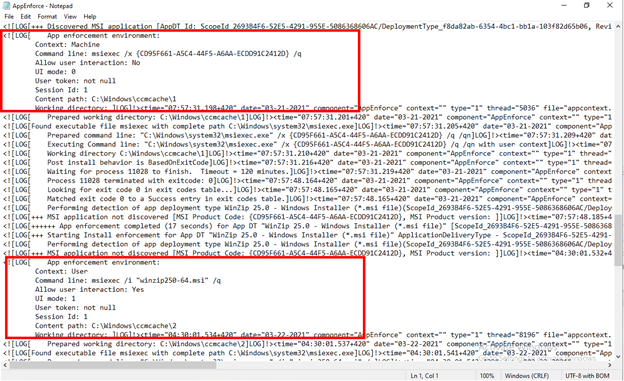 Figure 14: Inspecting script wrappers in AppEnforce.log.
3. Replicate and Profile Offline
Exfiltrate the package contents from C:\Windows\ccmcache\<id>\ to an offline analysis machine. In an elevated command prompt (using psexec -i -s cmd.exe to simulate SYSTEM), launch the installation switch while running Process Monitor with the following filters:
Operation is CreateFile
Operation is LoadImage
Path contains .dll
Path contains .exe
Result is NAME NOT FOUND
4. Trigger Deployment via WMI
Rather than waiting for scheduled maintenance windows or interacting with the graphical Software Center UI, an attacker can trigger the installation or uninstallation directly from a C2 beacon using the ROOT\ccm\ClientSDK WMI namespace:
# Query available Software Center applications
Get-WmiObject -Namespace "root\ccm\clientsdk" -Class CCM_Application

# Trigger installation on-demand via CCM_Application method
$app = Get-WmiObject -Namespace "root\ccm\clientsdk" -Query "SELECT * FROM CCM_Application WHERE Id='Application_GUID'"
Invoke-WmiMethod -Namespace "root\ccm\clientsdk" -Class CCM_Application -Name Install -ArgumentList @($app.Id, $app.Revision, $True, 0, "Normal", $False)
 Figure 15: Querying client SDK WMI classes.
 Figure 16: Executing installation programmatically.
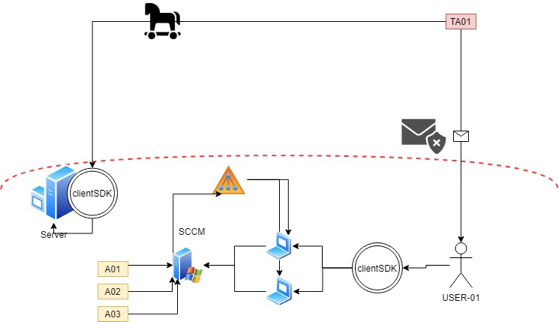 Figure 17: Process invocation occurring under SYSTEM context.
Defensive Recommendations & Hardening
To mitigate privilege escalation vectors through automated deployment boundaries:
- Restrict
C:\Windows\TempPermissions: Modify NTFS access control lists (ACLs) onC:\Windows\Tempso unprivileged users cannot read or execute files placed by other users/SYSTEM, or restrict directory creation rights. - Audit Packaging Standards:
Ensure MSI and third-party packaging configurations do not extract executables or dynamic libraries into shared, unprivileged-writable directories. Use dedicated, securely ACL’d subdirectories under
%ProgramData%. - Use Absolute Paths in Deployment Scripts: When wrapping installers in PowerShell or batch files, always supply fully qualified paths for binaries and working directories.
- Endpoint Behavioral Monitoring:
Configure EDR rules to flag low-privileged users writing executable files (
.dll,.exe) intoC:\Windows\Temp, as well as parent-child anomalies whereCcmExec.exeormsiexec.exespawns processes that load newly written DLLs from temporary storage.